
Troubleshooting
Find setup problems, reconnect services, recover sessions, and collect diagnostic logs.
Start with Doctor
Type /doctor whenever Clarvis can open but cannot start useful work. Doctor separates required failures, recommended fixes, and informational checks for configuration, providers, credentials, agents, defaults, safety, subscriptions, the backend, and diagnostics.
- Select a failing row and press Enter to open its repair action.
- Press
dto show detailed results. - Press
rto rerun checks,cto reconnect the backend, oruto refresh the model catalog. - Press
kwhen terminal keys are the problem and run the keyboard diagnostic.
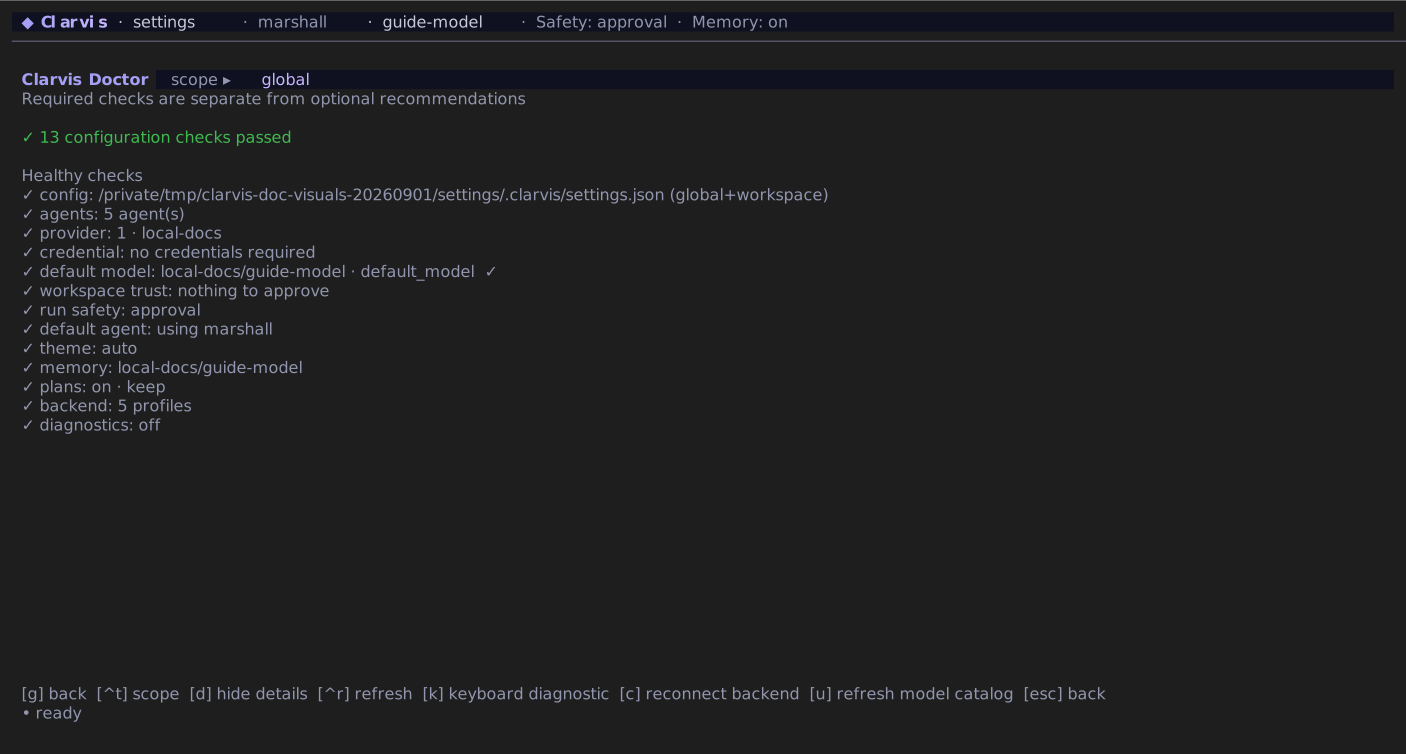
Doctor can remove invalid keys from a readable settings.json. If the file cannot be parsed, it can offer to reset that scope to {}. Both repairs show the affected path and require confirmation; inspect the proposed loss before accepting it.
Understand the startup screen
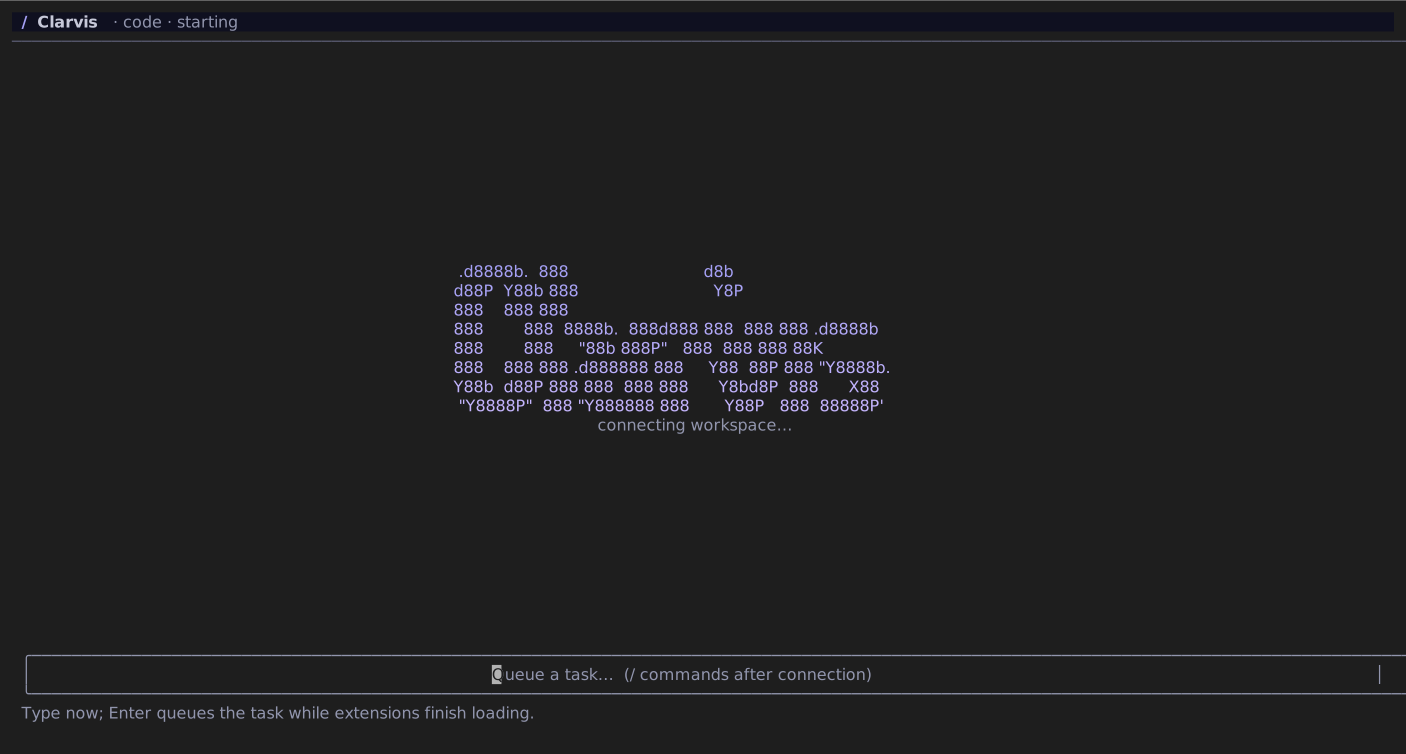
The first screen appears while Clarvis is still loading extensions, providers, and the session. You can type and send a new task there. Clarvis keeps it queued until an agent is ready. If setup or a repair is needed, the same text returns as a draft. When resuming a saved session, input stays disabled until that session has loaded.
An MCP OAuth challenge does not hold the message field or a model run open. The challenged server is inactive for that run and Clarvis shows one transient sanitized warning outside the transcript. Complete the browser flow, then use the server on a later run; use /reconnect if the current MCP diagnostic view still reflects the earlier connection state. Ignoring the browser leaves the rest of the application usable.
Reconnect after configuration changes
Use /reconnect when saved credentials, provider state, the selected Extension Profile, MCP servers, or other backend-owned configuration appears stale. Reconnect rebuilds the backend with the current Extension Profile and saved keys; it does not clear the session transcript.
If reconnect still fails, open /doctor and resolve the first required check before changing more settings.
Recover sessions and transcript content
/sessionslists sessions for the current workspace and lets you resume one./statusreports the current agent, model, run state, tokens, and cost./exportwrites the complete persisted transcript, including content folded out of the live TUI./cleararchives the current session and starts a fresh one.
Use export before clearing when the current transcript contains evidence you may need later.
Recover from memory pressure
If the memory fuse trips, Clarvis aborts active work and blocks new work instead of terminating the TUI. Type /recover-memory to rebuild the backend, then wait for the cooling state to clear. If a large live transcript remains the dominant cost, /clear starts a fresh session; export first when you need the full record.
Do not repeatedly submit work while recovery is active. Only recovery, clear, and quit actions remain available until the fuse returns to a healthy state.
Inspect local storage safely
Type /storage for a metadata-only inventory of Clarvis-owned state. It reports total and reclaimable space plus credential-file permission posture without showing credential contents.
Press c to preview cleanup. Clarvis only offers stale temporary data and rebuildable cache, then asks for confirmation before deleting anything. It does not use this action to delete sessions, configuration, plugins, or credentials. If the bounded inventory is incomplete, cleanup refuses to continue.
Capture diagnostics
Use the smallest useful diagnostic level:
/debug infoAccepted levels are error, warn, info, and debug. Bare /debug selects debug; /debug off closes a diagnostic session opened from the TUI. Clarvis reports the exact output path when the session opens, and Doctor shows whether diagnostics are active.
A session opened after startup can capture the TUI from that point forward. For a boot or backend startup failure, relaunch with --debug=info so diagnostics exist before those components start. Diagnostic files are bounded, rotated, use owner-only mode bits on POSIX, and redact prompt, tool, and credential-shaped payloads. Windows relies on the user's profile access controls. Review any excerpt yourself before sharing it.
When reporting a problem, include the Clarvis version, /status output, the shortest reproduction, the expected and observed behavior, and a sanitized diagnostic excerpt around the failure.