# Providers and models
> Connect an API or subscription, choose which models are available, and set the model and
> reasoning effort Clarvis uses by default.
## Understand the three separate choices
Clarvis keeps provider setup, model selection, and reasoning effort separate:
- `/settings/providers` owns connections, credentials, and the models available from each
provider.
- `/model` chooses the default model for future Lead runs.
- `/effort` chooses the default reasoning effort supported by that model.
Adding a model does not silently make it the default. Editing a provider also does not overwrite
the current model or effort.
The one exception is the dedicated first-run setup: its job is to create the first provider and
model, so it saves that model as the global default when setup completes. See
[Getting started](/getting-started#complete-the-first-run-setup) for the API, subscription, and local
provider paths.
## Review configured providers
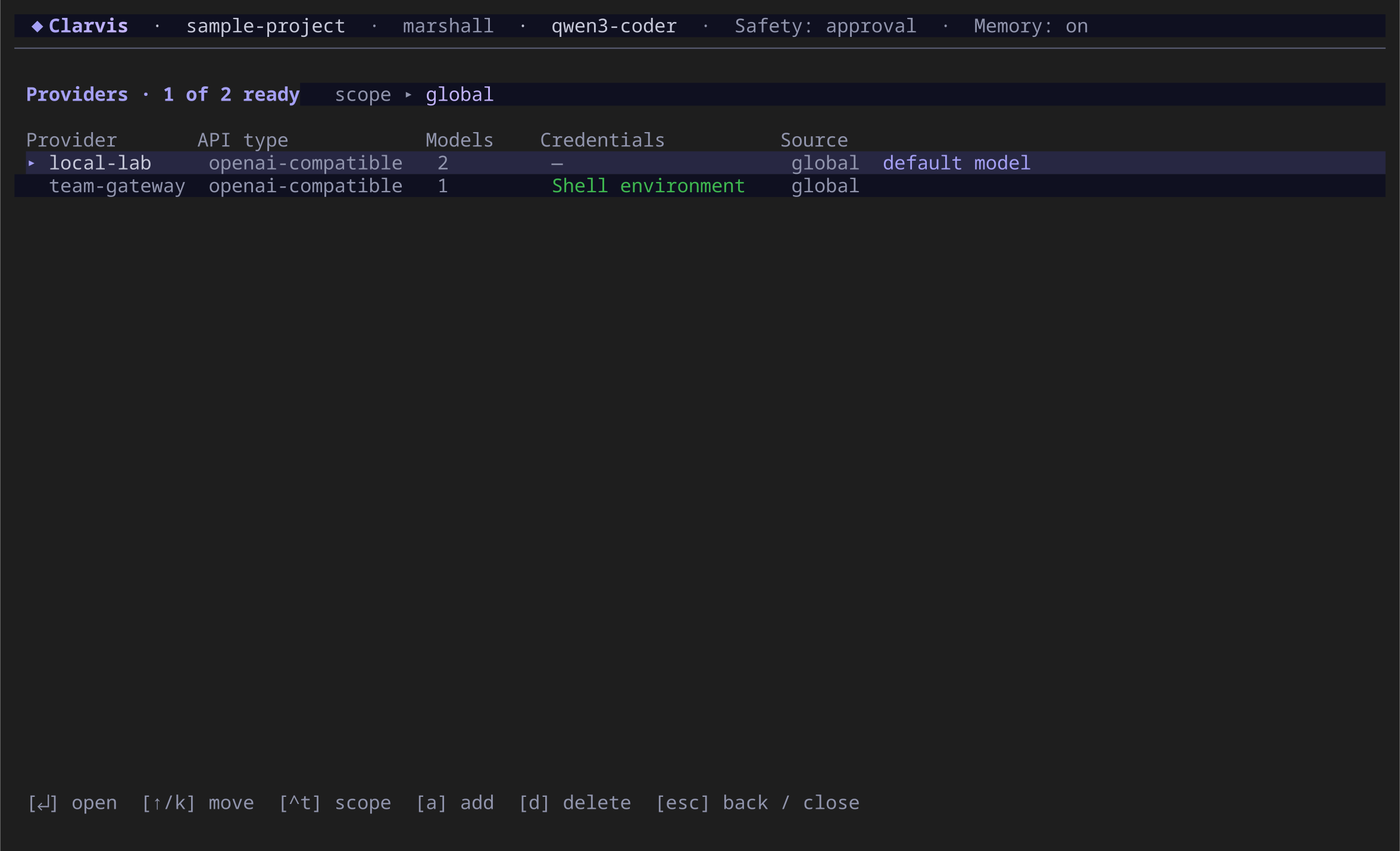
Open `/settings/providers`. The list shows the API type, number of configured models, credential
status, configuration source, and which provider owns the current default model.
The Providers screen in a 120 × 36 terminal. The scope is shown beside the title.
Press **Ctrl+T** to switch between global and workspace scope. Use global scope for a connection you
want in every project. Use workspace scope for a project-specific API endpoint or model set.
Subscription connections are personal and must be configured globally; a repository cannot create,
replace, or redirect them.
## Add a provider from the catalog
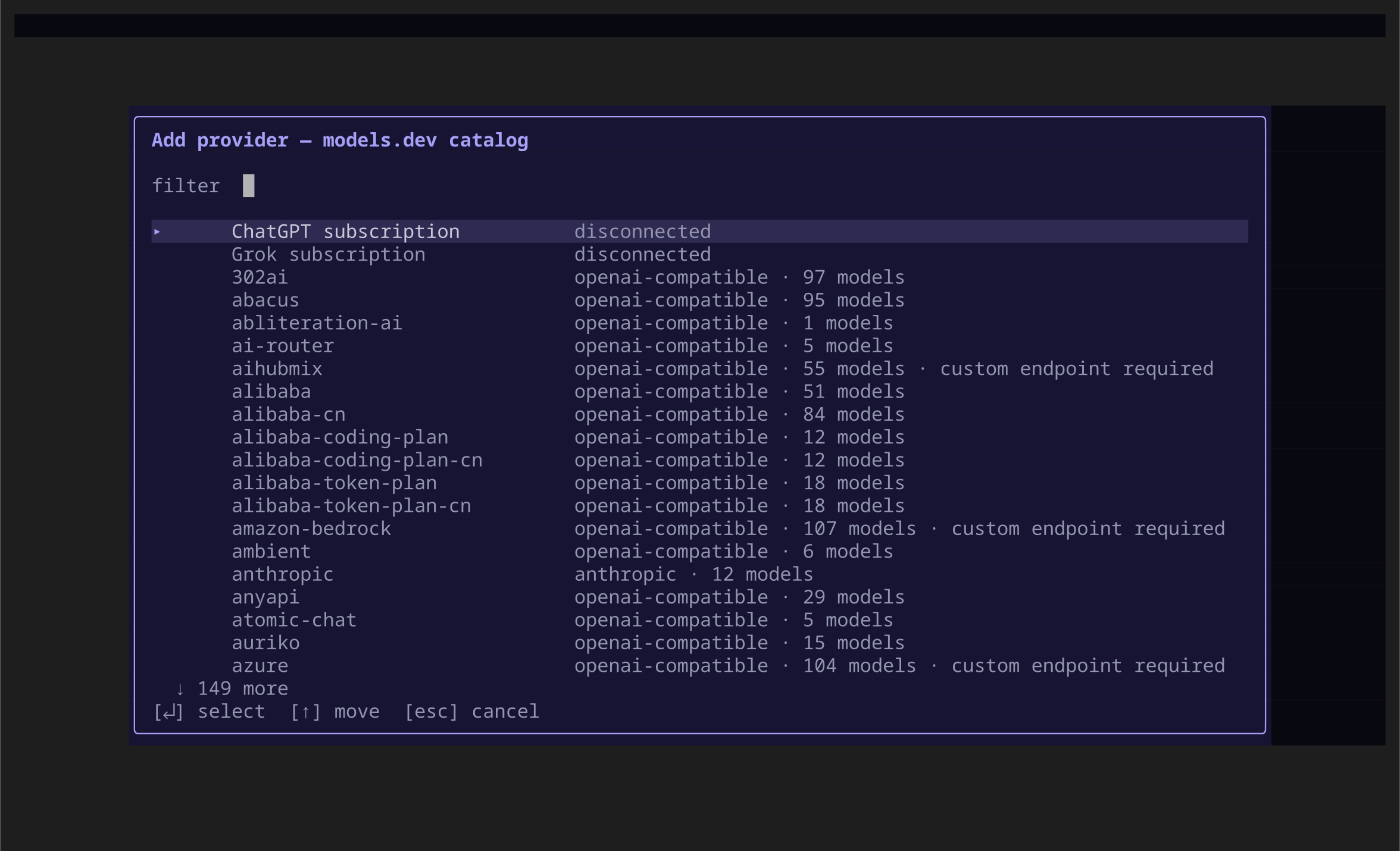
1. Press **A** on the Providers screen.
2. Type part of a provider name to filter the models.dev catalog.
3. Select the provider and press **Enter**.
4. Select one or more models. The picker stays open so you can add or remove several models.
5. Press **Escape** to return to the provider details. If its credential variable is unresolved,
Clarvis opens the API-key prompt at this point.
6. Review the endpoint, credential variable, model limits, headers, and request-body additions.
7. Press **Ctrl+S** to save the staged provider and model changes.
The same dialog displays Clarvis's beta subscription rows. They are separate from models.dev
and show as unavailable when the build or host does not provide that authorization integration.
Press A to search the provider catalog or begin a beta subscription flow.
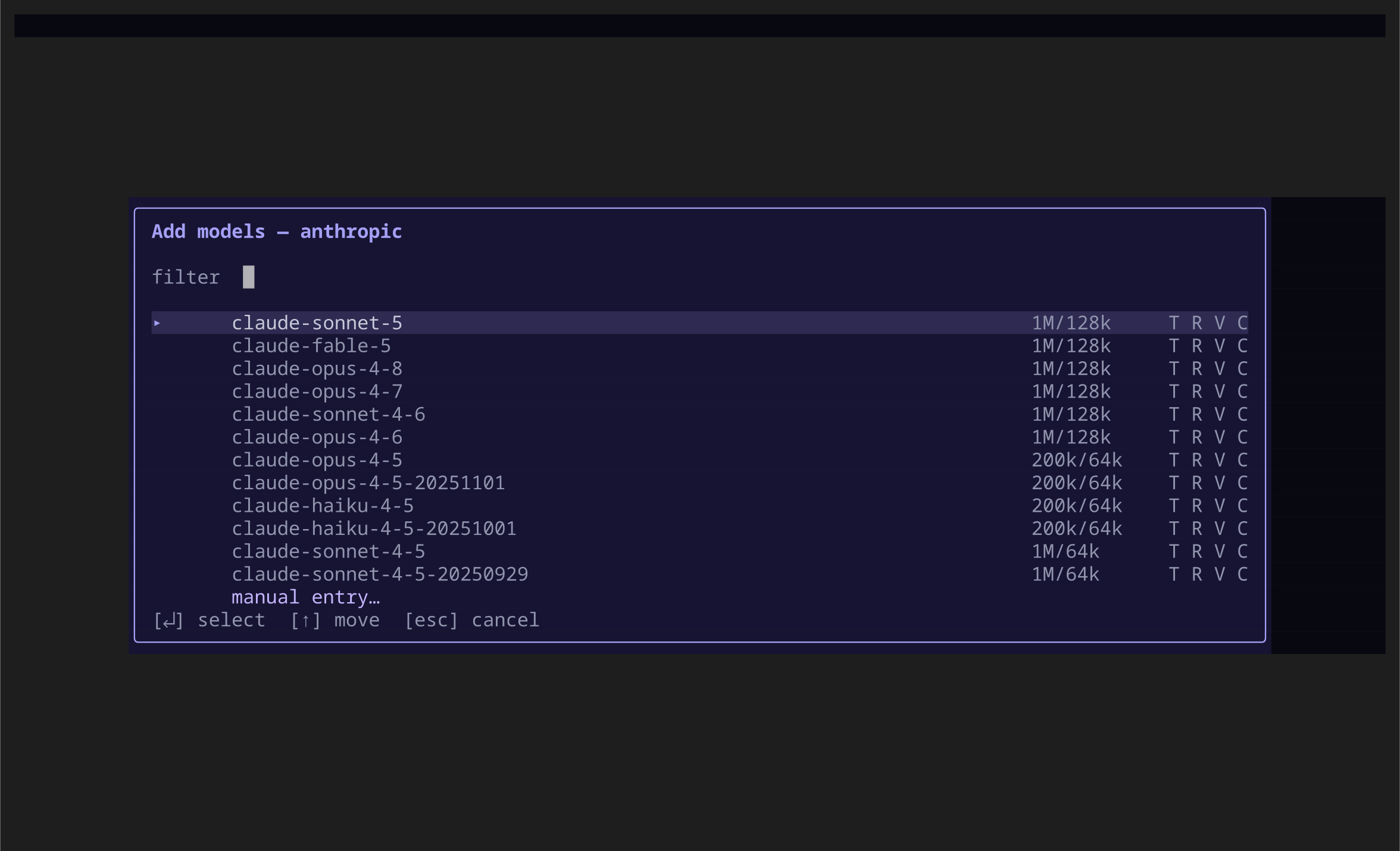
After selecting a catalog provider, Clarvis opens its model picker. The right-hand columns summarize
published context/output limits and capabilities. Select **manual entry…** if the model identifier
you need is not listed.
The real model picker. Catalog metadata seeds the model limits and capabilities.
Use `/refresh` if the locally cached models.dev catalog is stale. The refresh changes the catalog,
not your saved provider or model choices.
If the catalog is unavailable before the main workspace opens, exit and run:
```bash
clarvis --refresh-models
clarvis
```
## Add a custom or local provider
Use manual entry for a local server, private gateway, or provider absent from the catalog:
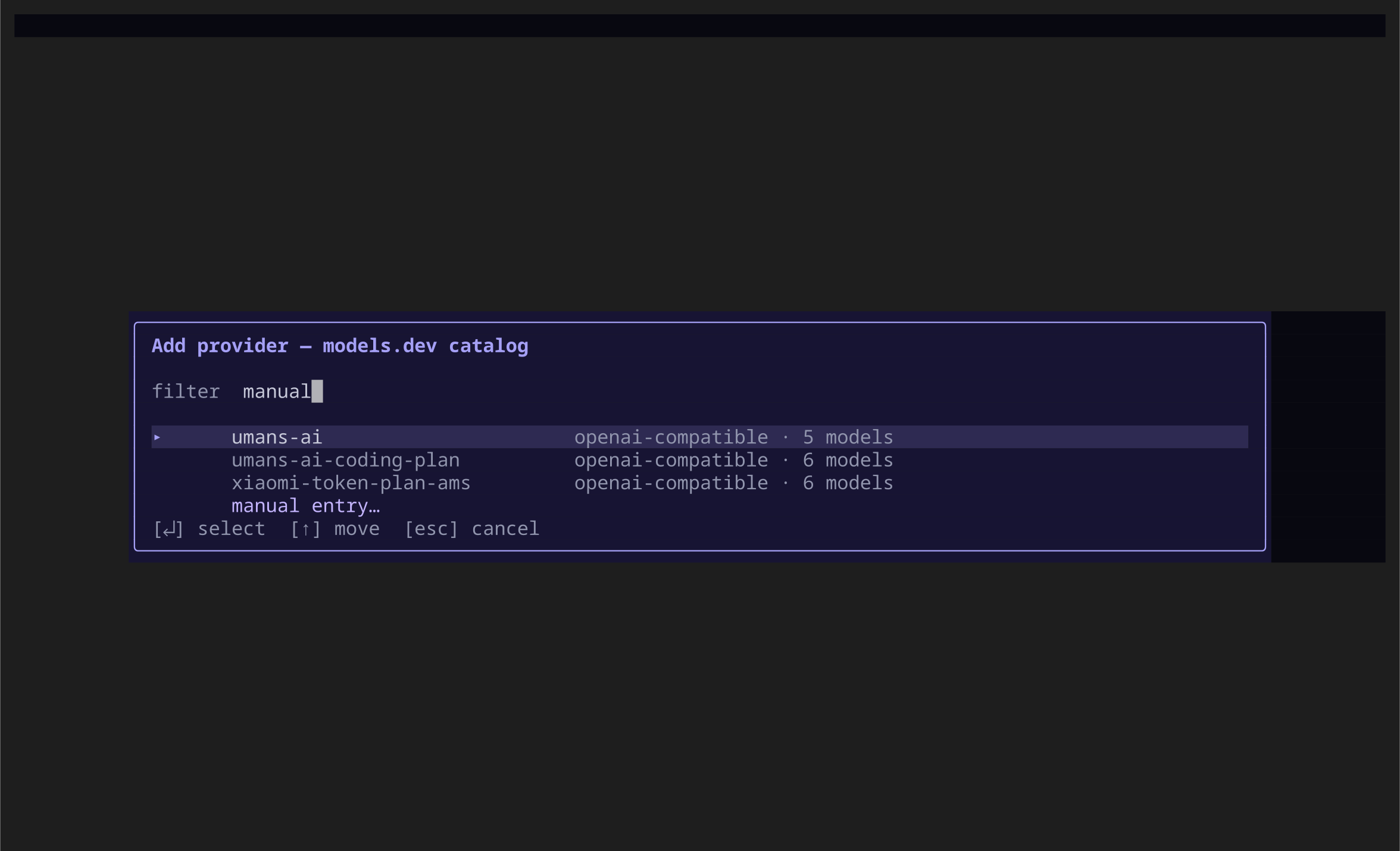
1. Open the Add provider dialog and type `manual`.
2. Select **manual entry…**.
3. Give the provider a stable name.
4. Choose its API type. For an OpenAI-compatible endpoint, choose `openai-compatible`.
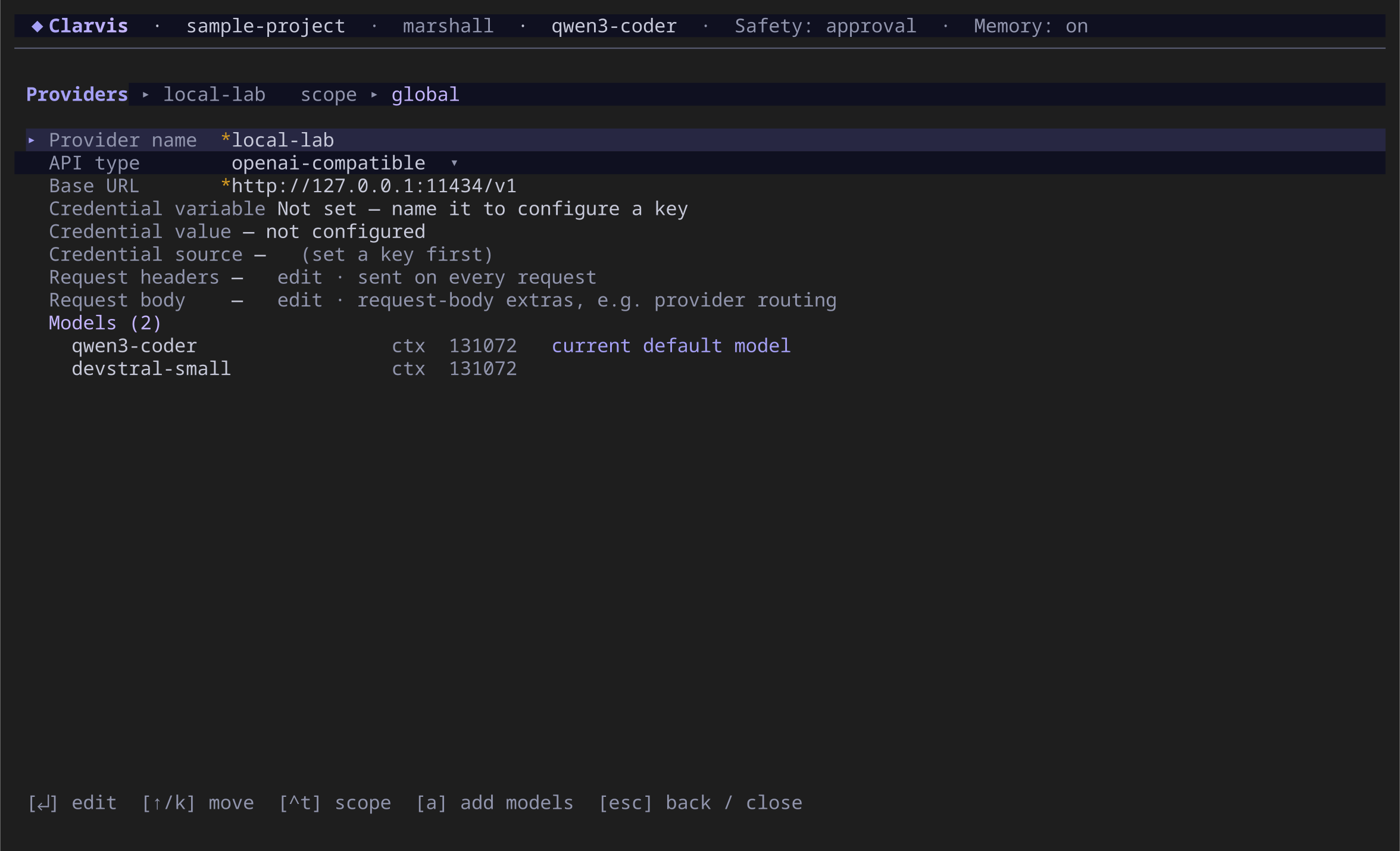
5. Set the complete HTTP or HTTPS API root, such as `http://127.0.0.1:11434/v1`.
6. Name the environment variable that holds the API key. Leave it unset only when the endpoint
genuinely requires no key.
7. Press **A** from the provider detail to add a model ID.
8. Set a positive context-window size and review the optional output, cache, header, and body
settings.
9. Press **Ctrl+S** to save.
For example, a provider named `local-lab` with model ID `qwen2.5-coder:7b` becomes the full model
reference `local-lab/qwen2.5-coder:7b`. Enter the exact ID expected by the server; provider-native
tags after `:` are supported.
Manual entry is always available at the end of the filtered catalog.
Open a provider with **Enter** to edit it later. Press **A** there to add models and move onto a model
row to inspect its limits. Provider changes remain staged until **Ctrl+S**; leaving a dirty screen
asks before discarding them.
The provider detail owns credentials and available models, but not the default model.
::: warning
Never put a literal API key in `settings.json`. Name an environment variable or use the credential
value flow. Clarvis does not render a saved secret back into the terminal.
:::
## Connect a beta subscription
Subscription availability and account eligibility are controlled by each provider. Clarvis's beta
integration does not imply provider endorsement. If a row is unavailable, configure an API provider
or compatible endpoint instead. The implementation has synthetic transport coverage; before relying
on either subscription for a release, validate login, entitlement discovery, refresh, and one real
inference with an owner-controlled eligible account.
Choose the subscription row from Add provider and follow the displayed device flow:
1. Start the connection.
2. Open or copy the verification URL only when you are ready.
3. Enter the public device code on the provider's site.
4. Return to Clarvis and wait for the entitled model catalog.
5. Select the models you want available.
Provider detail then offers reauthentication or confirmed disconnect instead of API-key and
endpoint fields. Adding models reloads the authenticated entitlement catalog; it does not substitute
the public provider-name catalog.
## Choose the default model
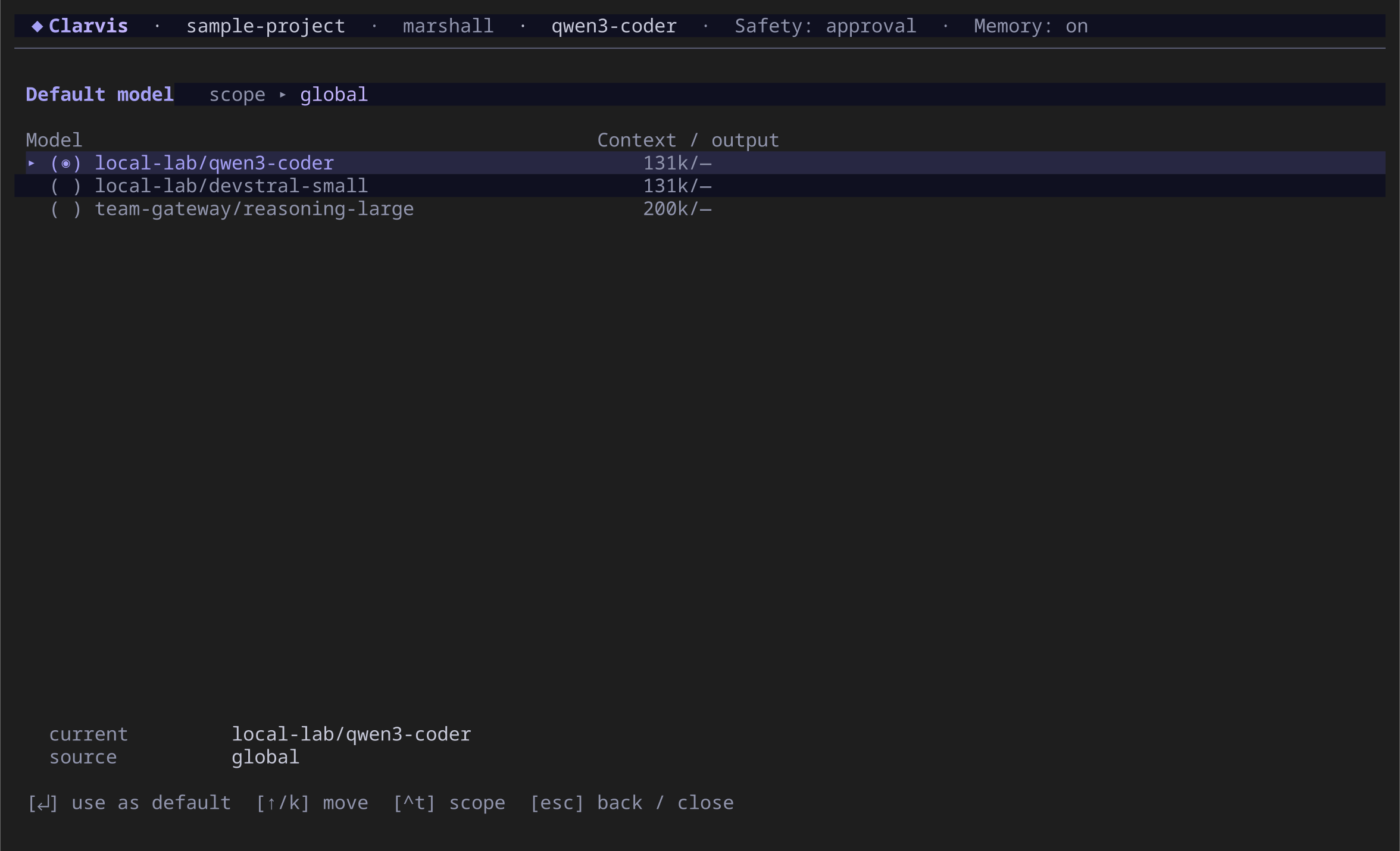
Open `/model`. Press **Ctrl+T** if you want a workspace override instead of the global default, move
to a configured model, and press **Enter**. The change is saved immediately and applies to the next
run.
The selected row becomes the default for future Lead runs in the visible scope.
Choosing a model also applies its recommended effort when Clarvis has model metadata for that
choice. If switching to a smaller context window would not fit the current session, Clarvis asks
before permanently evicting older context; canceling keeps the current model.
The user default is authoritative for the Lead. A sub-agent may still declare its own model in its
agent profile; otherwise it falls back to the user default.
## Choose the default reasoning effort
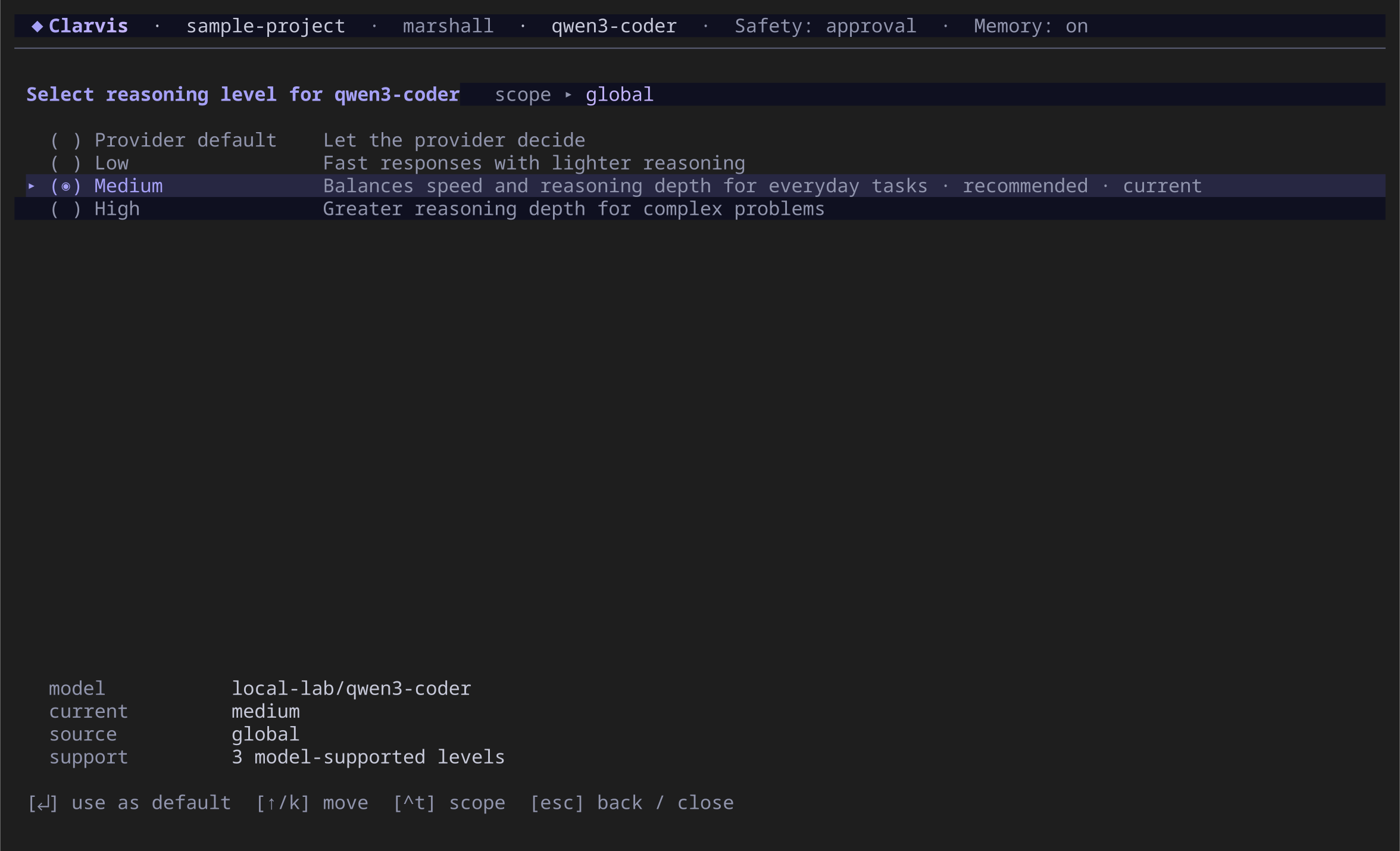
Open `/effort`, choose one of the levels the current default model supports, and press **Enter**.
Select **Provider default** when the provider should decide. The change is immediate and applies to
the next run.
Clarvis shows only the effort levels published or configured for the default model.
If `/effort` reports that support is unknown, review the model in `/settings/providers`, refresh the
catalog, or add the model's published metadata. Clarvis does not invent unsupported levels.
## See also
- [Configuration](/reference/configuration)
- [Agents](/guide/agents)
- [Scopes and workspace trust](/explanation/scopes-and-trust)
- [Troubleshooting](/operations/troubleshooting)
---
[Canonical HTML](https://clarvis.dev/guide/providers-and-models)
[Documentation index](https://clarvis.dev/llms.txt)