# Plans
> Decide whether work needs a plan review, keep completed plans as an audit trail, or discard them
> automatically after successful work.
## Choose a planning mode
Open `/settings/controls`, move to **Planning mode**, and press **Enter**:
- `off` exposes no plan tools for future runs;
- `on` lets the Lead author and execute plans without a separate approval gate; and
- `review` holds a proposed plan for your approval before execution.
Press **Ctrl+T** to choose global or workspace scope. These controls save immediately and apply to
the next run. `/planning/review` and `/planning/normal` are quick workspace routes for switching
between reviewed and ordinary planning.
## Keep or discard future plans
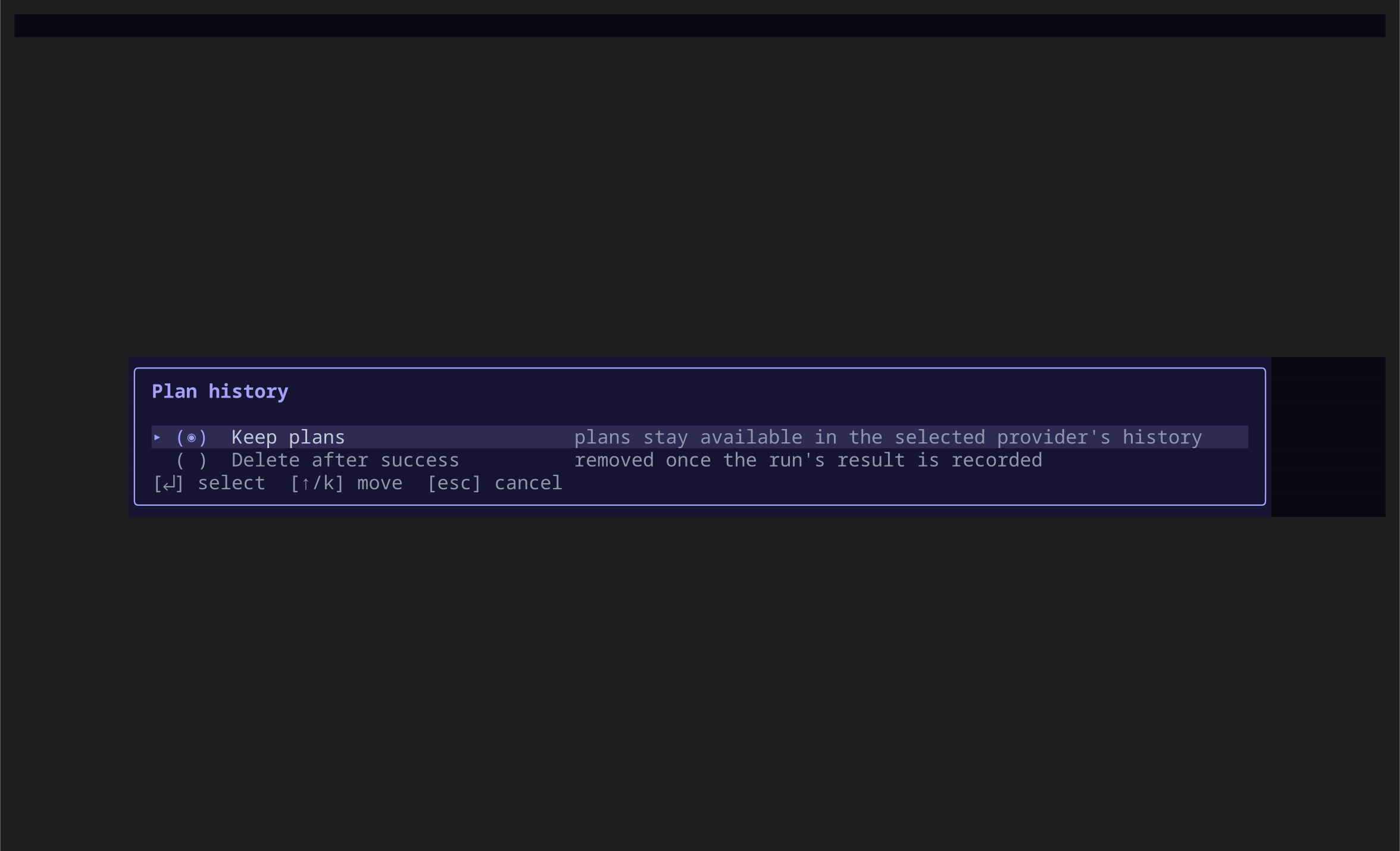
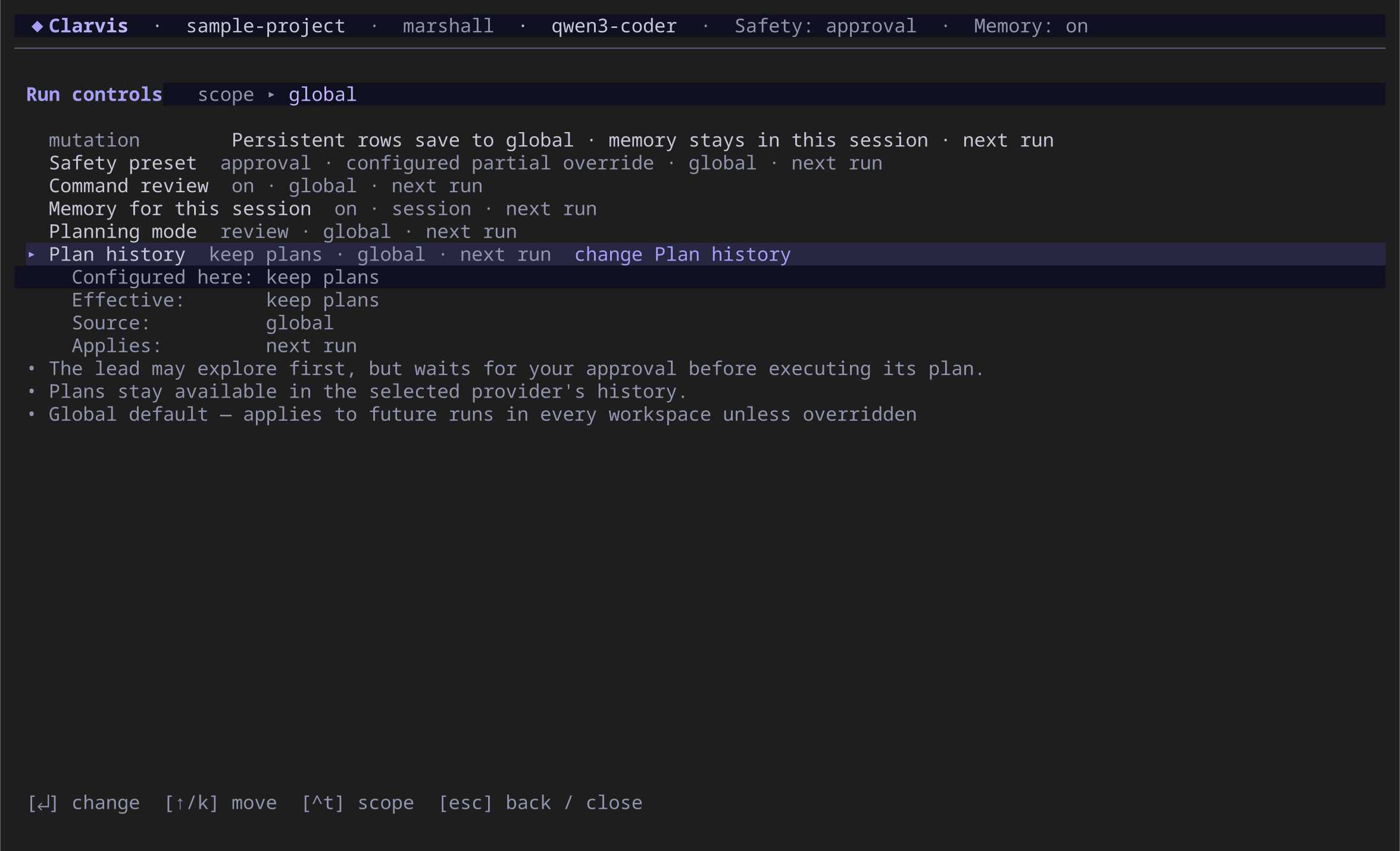
Move to **Plan history** in `/settings/controls` and press **Enter**:
- **Keep plans** leaves completed plans available in `/plans`.
- **Delete after success** removes a plan after the successful run record has been written.
Retention is a persistent global or workspace default for future runs.
`keep` is the default. `discard` is deliberately narrower than “always delete”: a crash,
cancellation, or failed run leaves the plan available for diagnosis and recovery.
The expanded Plan history row shows the configured value, effective value, source, and when the
change applies.
Use Ctrl+T before changing the row when the policy should apply only to this workspace.
## Manage one saved plan
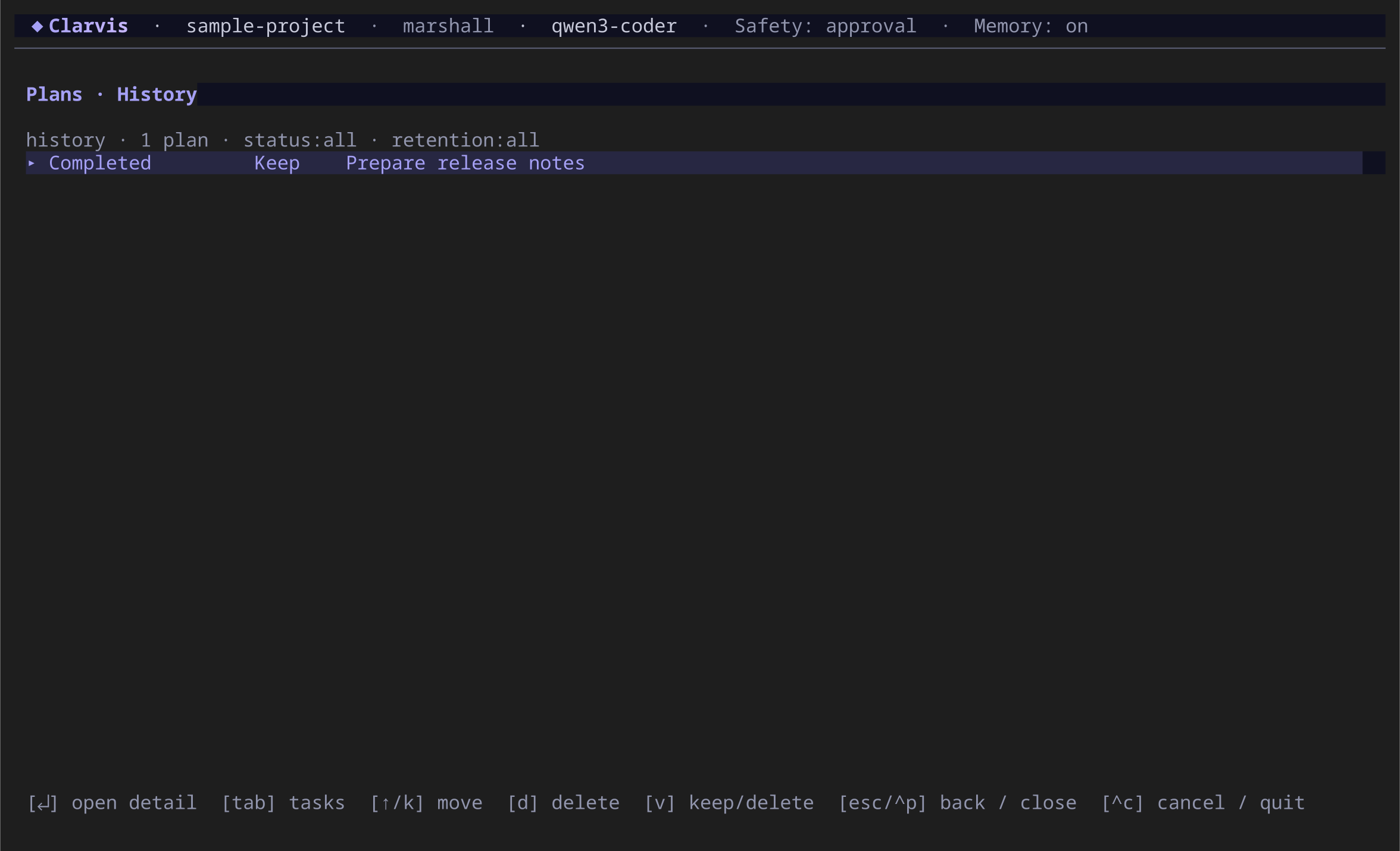
Open `/plans`. The history shows lifecycle and retention beside every plan. With a plan selected:
- press **Enter** to open its complete detail;
- press **V** to switch only that plan between `keep` and `discard`;
- press **D** to delete a non-active plan after confirmation;
- press **F** to cycle status filters;
- press **T** to cycle retention filters; and
- use **[** and **]** when another history page is available.
V changes retention for the selected plan; D is a separate confirmed deletion.
Changing an active plan to `discard` does not immediately erase it. The plan provider applies that
retention if the related run later completes successfully. For a plan whose run has already ended,
**V** changes only the saved retention metadata; use **D** for explicit removal.
## Follow the current plan
Press **Ctrl+P** to open the current or latest available plan. Use **Tab** to move between task
progress and history when both are available. A plan opened from history returns to history on
**Escape**; a directly opened plan returns to the run.
Plans can survive across sessions. Keep them when the intended work and its results matter as an
audit trail; use discard for routine successful work where the terminal run record is enough.
## See also
- [Daily use](/guide/daily-use)
- [Workflows](/guide/workflows)
- [Configuration](/reference/configuration)
- [Commands](/reference/commands)
---
[Canonical HTML](https://clarvis.dev/guide/plans)
[Documentation index](https://clarvis.dev/llms.txt)